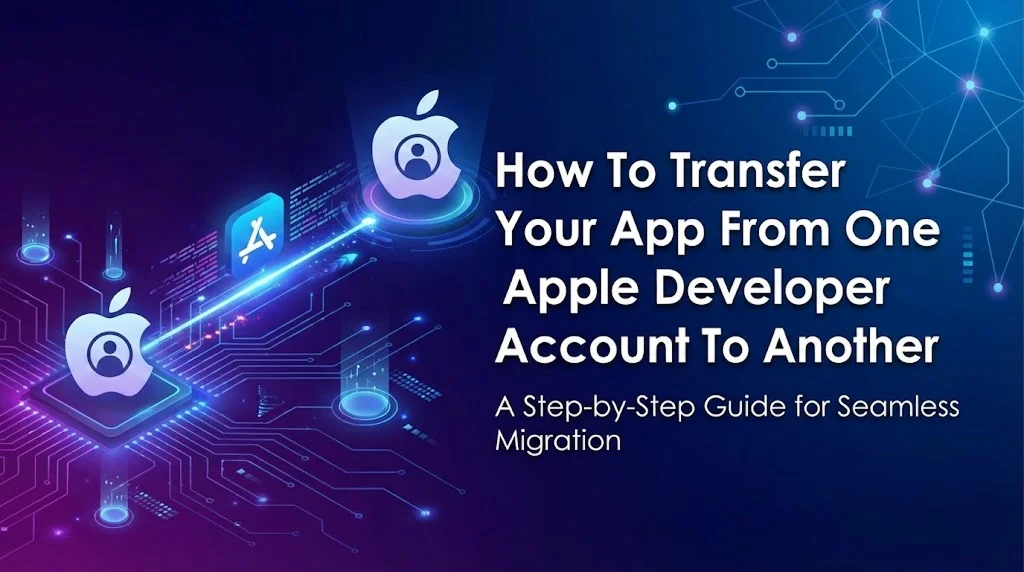
Transferring an iOS app from one Apple Developer account to another is a streamlined process managed through App Store Connect. This procedure is commonly necessary when there’s a change in app ownership, a developer is handing an app over to a client, or a company is consolidating its portfolio.
The transfer allows the app to move to a new developer account without being removed from the App Store, ensuring that users experience no disruption in availability. The app retains its reviews, ratings, and App Store URL, and existing users will still receive future updates under the new account’s developer name.
Key Transfer Requirements
Before initiating the process, the app and both developer accounts must meet specific criteria:
- Role Requirement: The Account Holder (Team Agent) of both the sending and receiving accounts must initiate and accept the transfer.
- App Status: The app must have at least one approved version released to the App Store. It cannot have any pending app versions or be currently in review.
- Account Status: Both the sender’s and recipient’s developer accounts must be in good standing, not be in a pending or changing state, and must have accepted the latest version of all agreements in the Agreements, Tax, and Banking section of App Store Connect.
- Entitlements: The app cannot use certain entitlements, most notably iCloud or Passbook/Wallet capabilities.
- TestFlight: All TestFlight beta testing must be turned off for all beta versions of the app.
- Recipient Information: The sender will need the Apple ID and Team ID of the recipient’s Account Holder.
Steps to transfer your app to another Apple Developer account
The process is divided into two main stages involving both the sender and the recipient:
- Initiate the Transfer (Sender’s Role): The Account Holder of the original account logs into App Store Connect, navigates to the app’s App Information section, and selects the Transfer App option. They verify the app meets the criteria, enter the recipient’s Apple ID and Team ID, and agree to the terms to request the transfer.
- Accept the Transfer (Recipient’s Role): The Account Holder of the recipient account receives an email notification. They log into App Store Connect, go to the Agreements, Tax, and Banking section, review the pending transfer, provide necessary new metadata (like support URLs and contact info), and accept the terms.
Steps After the transfer
The main steps for the recipient after an Apple Developer account app transfer are:
- Renew Certificates: Immediately generate and update Push Notification Certificates and all provisioning profiles using the new account credentials, as the old ones are invalidated.
- Verify Services: Re-link any external services (like Firebase or analytics) that were tied to the original account.
- Review App Store Connect: Confirm all app metadata, pricing, in-app purchases, and tax information is correct under the new ownership.
- Prepare for First Update: Configure your Xcode project with the new signing and provisioning profiles so you can build and submit the first update.
- Re-establish TestFlight: Recreate any internal or external testing groups, as these are not transferred.
A Discussion on Troubleshooting Tips:
Here are the troubleshooting tips for an app transfer, in points, focusing on the common issues the sender and recipient face before and after the process:
I. Before Transfer (Sender’s Issues)
- Eligibility Check: The app must have at least one approved version.
- Active Agreements: Ensure both the sending and receiving developer accounts have accepted the latest Paid and Free agreements in the “Agreements, Tax, and Banking” section.
- No Pending Versions: Reject or remove any app versions that are “Waiting for Review” or “Prepare for Submission.”
- Disable Testing: Turn off all active TestFlight beta testing for the app.
- Entitlement Restrictions: The app must not use iCloud or Passbook/Wallet entitlements to be eligible for transfer.
- Correct Roles: Only the Account Holder (Team Agent) of the original account can initiate the transfer.
- Clear Test Information: A non-obvious step: go to the TestFlight section and clear all data from the “Test Information” fields.
II. After Transfer (Recipient’s Issues)
- Push Notifications Broken: Immediately create new APNs Certificates using the new account’s credentials and update the push notification service/server. The old certificates are invalidated.
- Code Signing Fails: Download and install the new distribution certificate and re-download/regenerate all provisioning profiles in the Apple Developer portal. Update your Xcode project to use the new signing identities.
- Universal Links/Deep Links Fail: Update the Team ID (which has changed) in your apple-app-site-association (AASA) file on your server.
- App Group/Keychain Access Lost: If using App Groups, you must re-create the App Group using the new Team ID in your Developer Member Center and update the Xcode entitlements.
- TestFlight Groups Missing: Recreate all TestFlight groups (Internal, External) and re-invite testers, as testing groups do not transfer.
- Data Missing/Inaccurate: Past App Analytics data is often lost; confirm the required data was backed up by the sender. Verify Sales and Trends data is correctly populating the new account.
Conclusion:
The successful app transfer is complete when the recipient has immediately renewed all necessary certificates (especially for Push Notifications), updated the app’s signing credentials in their development environment, and confirmed that all app metadata, payment details, and services in App Store Connect are correctly linked to the new owner’s account.